

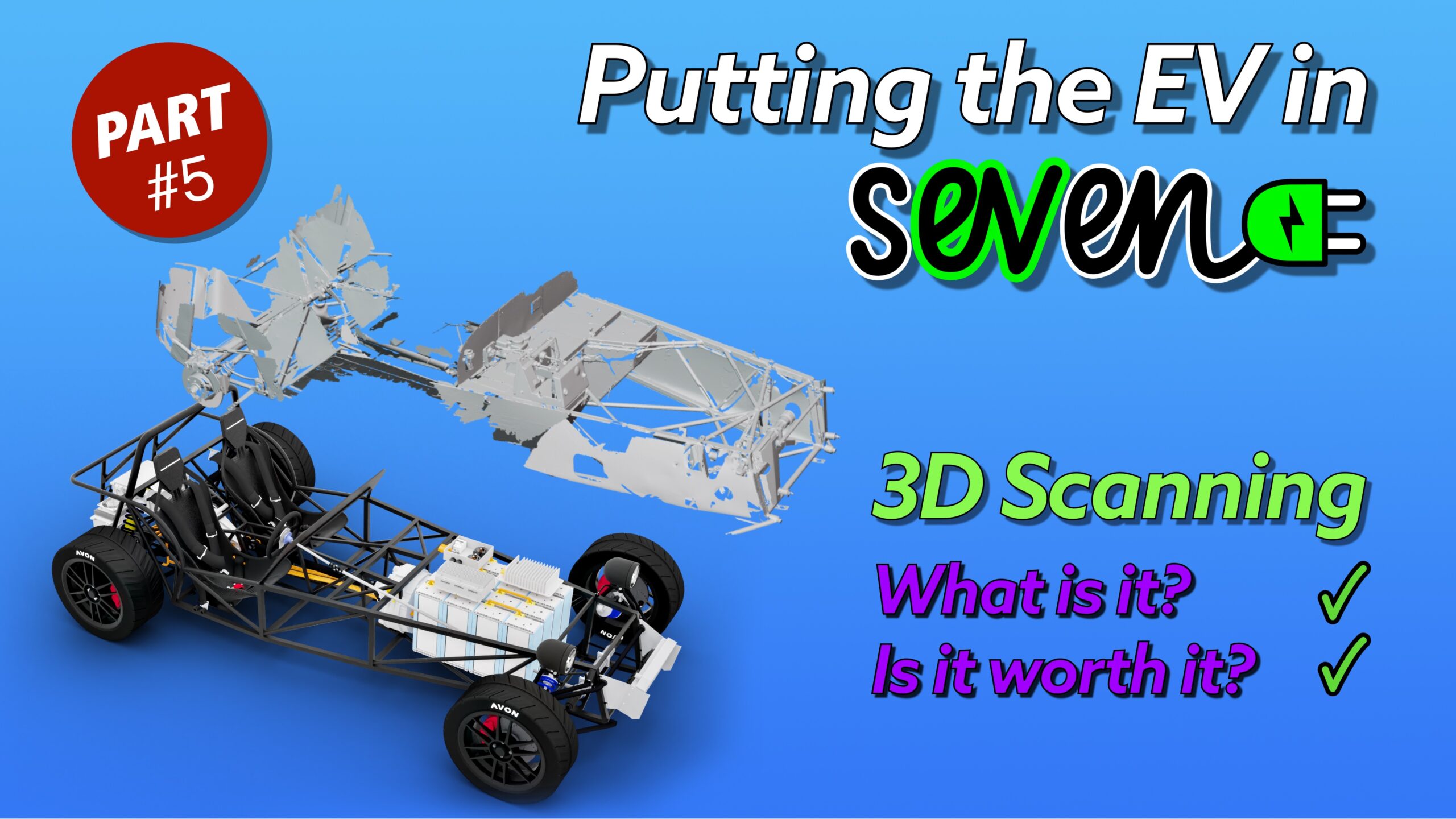
Time for another video. This time on one of the first jobs that needed doing once the project car had been stripped down… to 3D scan what remained.
A scan is an essential part of an EV conversion these days. It allows you to accurately measure all the odd angles and protrusions of the project without having to completely disassemble what remained. It also gives me a playground to test ideas and components inside a CAD package without having to revert to Cardboard Aided Design or to borrow/buy real components to try them out in place. So its a real time saver for space planning and I’d argue essential for my build where millimeters are going to make a difference.
All of that is explored, demonstrated and explained in this latest video…
As ever, this video took way longer than it should have done. I get too easily into the weeds with new animations (did I really need to animate Vincent at 13:11 to show working from the office, home and on a trip!… but I did enjoy doing it 🙂 ).

I also found a few new tools to help with my workflow in Final Cut Pro.
- Creators Best Friend for Final Cut Pro is simple but saves loads of time extracting Chapter markers to dump into YouTube as chapter start times.
- Screen Studio completely changed the way I did screen recordings. It easily allows me to grab a screen, set the right resolution and then edit the recording to trim out the inevitable bits where there’s just too much dead space or you hit the wrong menu item. It also does all the mouse control stuff and auto-zooming into wherever to click. Highly Recommended (Mac only… I think).
The next video it probably going to be about how I programmatically took the scan from this video and created a tubular chassis to work in CAD with.
Here’s the FCP timeline…

Video Chapters
- [00:00] Start
- [01:17] Project Recap
- [02:25] What is 3D Scanning
- [02:54] How does a scanner work?
- [04:53] Scanning my Project Car
- [07:04] Post Processing
- [10:14] What’s all the fuss about 3D scanning
- [10:30] Computer aided workflow
- [11:46] Scanning in a 3D CAD workflow
- [13:34] Conclusion
Transcript
Start
[00:00] Today, we’re going to look. look at one of the three key legs of my computer aided workflow. 3D scanning. I’ll give a quick overview of what 3D scanning is. How I scanned my project car. And what the benefits are of having a 3D digital twin.
[00:28] As a one man band, EV conversionist, my computer aided workflow allows me to level up with the professionals. I’d argue… that 3D scanning, modeling, and printing don’t just add together. They multiply. My ability… Do you play? the big boys. Making key design decisions just wouldn’t be possible. If I were trying to do this with pen and paper, Or the garage favorite, cardboard AD design. Now, how am I going to get 16 of the? Into here. Just like cars have got way more complicated, so have the tools needed to design them.
[01:07] Car manufacturers just couldn’t design such complicated vehicles. Using old school drafting tools. And I’d argue, that now goes for garage tinkerers too.
Project Recap
[01:19] If you’ve missed the previous videos in this series, then firstly, shame on you. I’ll leave that as homework exercise with this playlist. But if that’s a bit too much, and I don’t blame you, then here’s the quick catch up to save you having to watch all that rubbish. In this project, we’re taking an unloved 2012 K Troom 7 Super Sport SP. X drift car, and converting it to be a shiny, clean electric vehicle. So far, I’ve bought a project car. Got his MOT’d.
[01:47] Registered it for road use. And stripped out all the oily, smelly engine bits, leaving chassis and running gear, ready to have the new electric drivetrain installed. We started off. With a nearly road legal, larger SV version of a Caterham 7 that weighed in at just 550 kilograms. Yes, that’s right. Just a bit more than I weigh after Christmas. We then removed. Around 200 kilos of combustion engine, gearbox, fuel tank, and fluids, which left us… With a stripped back weight. Of around…
[02:18] 350 kilos, where we’re hoping to keep the final EV weight below about 650 kilos.
What is 3D Scanning
[02:27] Okay, so what is 3D scanning? 3D scanning is a way of capturing a computerized. Dimensionally. Accurate. Representation. of a physical… Object. Giving you the surface or mesh of the thing you’ve scanned. You can then manipulate. model in a 3D computer aided design package. There are loads of benefits of having a 3D model of your project, and I’ll cover the ones I find most compelling at the end of this video.
How does a scanner work?
[02:54] But how does a scanner work? I hear you ask. In simple terms… A 3D scanner captures the surface of an object. By shining some sort of light at the thing you’re trying to scan, and recording the reflected light coming off it. Some scanners use visible light. Some use infrared. And some use what’s known as structured laser light. Visible light scanning is good if you want to get a colored or textured scan. While at the other end of the spectrum, pun intended, structured light scanning is good for accuracy can be better for black or shiny objects, but doesn’t typically give you a colored scan.
[03:37] There are many ways of getting a 3D scan of an object. But probably the best method for a garage tinkerer is with a handheld scanner. That you wave around your object, you want to scan. And a software app on your computer first captures a point cloud from the scanner. And then turns that into a mesh. After which, you can export it into whatever 3D CAD package you’re using. I have two scanners. A pro-sumer. Shining 3D Einstar. That’s fine for colored scans and smaller projects.
[04:11] And a shining 3D I scan HX that is frankly overkill for a garage tinkerer. But reliably delivers submillimeter, highly accurate 3D scans over the scale of something like a vehicle. But there’s a bud. There’s always a bud. But it takes time and experience to get a good 3D scan of an object. The scanner manufacturers are improving their hardware and software all the time. However, I’ve found it takes experience to get a good 3D scan. My scanning process has a frankly ludicrous 17 steps that I do to get a scan.
[04:45] If you’d like to see a video about that workflow. Then let me know in the comments below, and I’ll put something together.
Scanning my Project Car
[04:51] So now we know about scanning onto my project car. Now, in this very delayed project timeline of two years ago, I’m way behind in my videos. I wasn’t quite as proficient in my workflow as I am now. And so didn’t get the precise scan I can now achieve. And one of the problems I encountered at the time, The high-end HX scanner hooked up to a laptop. That I knew was on the lower end of what was recommended. The HX didn’t seem to want to scan in the more accurate structured light mode, and I was getting poor results with the rapid non-laser mode.
[05:24] For what it’s worth. Here are the laptop space. It should have been okay, but for me at least it wasn’t for some reason. Also, The iron scan, in rapid mode, was struggling with the shiny and black parts that my project car had all over it. My solution? Was scanning juice. A trick I’d picked up. From Super Fast Maps, YouTube channel. We take… one part talcum powder. Three parts Isopropyl Alcohol.
[05:57] You spray the stuff all over the thing you want to scan. With the result that the scanner can pick up the matte gray surface much better. than the shiny or black surfaces. You can buy all sorts of scanning and matte sprays In a can. But I found… that the scanning juice is really cheap. and works really well, even if there is a lot of cleanup. But I battled through. And got a scan of what I thought were the bare minimum sections.
[06:23] of the project car, using what shining 3D call a rapid scan. I had expected to do the scan again at some point, but that didn’t get back onto my radar for another 2 years. Anyway, I got the scan of what I thought were the main components and the pickup points I’d need for my project. I was mostly interested in whether I could fit a motor in the rear of the car. Or whether it had to go in the front. And then I needed to know how the motor inverter and batteries would bolt into the existing chassis.
[06:52] As I’ve covered before, to get an easier path through the UK Road Approvals process. I was going to need to keep the chassis unmodified, and so needed to only use existing pickup points.
Post Processing
[07:06] Then once I got a scan, I was way too eager to start playing with it in my cab package, Fusion 360. I should have spent more time post processing the scan, and less time rushing to the end result. Once I got a mesh into fusion, I was finding it difficult to work with. I incorrectly assumed. That a package? As comprehensive as fusion. Would also have comprehensive mesh tools. It doesn’t. I had a complicated mesh. They needed some cleanup, and I could also really do with it being split into different components, so I could view and hide bits that were in the way.
[07:38] And fusion just wasn’t cutting it. Mesh splitting was poor, and even constructing new geometry on the mesh was only supported in a very basic set of ways. Fusia can just about be used to build new geometry often around a mesh scan, but manipulating the mesh is not its strong point, in my humble opinion. Auto Desk, the crowd that owned Fusion, had recently bought one of the better freeway apps called Mesh Mixer. To improve mesh support. But it hasn’t really delivered yet.
[08:07] and has meant that Mesh Mixer itself has stalled and not been updated for years. Even given its shortcomings, Mesh Mixer is still a good, simple mesh editor. I could use it for just a few operations. Cleaning up the mesh and segmenting it into various components. And in the end, the mesh got split into about a dozen pieces. That could all be exported. And pulled back into Fusion 360. Or I could mess around with the mesh and any new models I created or acquired from various component supplies.
[08:36] The result was totally worth doing, and has made the last 18 months a lot easier. One tip for fusion 360 here is to reduce the mesh complexity as soon as you import interfusion. Fusion struggles with the large, high detail meshes I like to work with. And as of spring of 2025, I find fusion can lock up when moving objects or inserting new components. If you have more than about 2 million mesh polygons visible. To reduce the mesh, I use mesh, modify, reduce, and a tolerance of 0.01 millimeters, which is crazy small I know, but it’s surprising how many polygons this removes.
[09:13] Fusion calls them facets. And one thing I didn’t get right with this scan was model alignment. When you scan your project, the scanner doesn’t inherently know where the orientation of your project front. Or side sit. So one of the post processing steps is to align your scan with the axes you want it aligned to in your CAD package. So the Z-Ax is up, et cetera. But at the time I got my first scan, I didn’t know how to do this in the shining 3D tools.
[09:42] I thought I could do in a mesh mixer, which I couldn’t. And then I thought I’d do it. Fugion 360. But at the time, I failed there too. The consequence of which was that the scan didn’t quite sit flat in the digital world. Nor was the front of the car pointing truly forwards. Shoddy work must do better. The moral of the story is to measure twice and cut once. Oh, no, hang on. That’s a different learning point. The moral is, Make sure your coordinate systems are properly aligned from the start.
What’s all the fuss about 3D scanning
[10:17] Now I have a 3D scan of my project car. What’s all the fuss about having one? Well, there’s two sides to that story? Why use a computer aided design workflow in the first place, and why add 3D scanning into that workflow?
Computer aided workflow
[10:33] We’ve been making stuff in our garages forever, from simple brackets. To complete vehicles. And along with the complexity scale of simple widgets to full vehicle. The design process has a scale of complexity too. If you’re making a simple bracket, then getting the tools out and just knocking something up can work well. But if you’re trying to create a whole vehicle, then just pulling out hammer may not be the right way to start the process. So there’s a scale of even simple design methods through just winging it.
[11:03] Paper sketches. Cardboard prototypes. Through to foam or wood modeling. But once you get past what these methods can do for you, the next step, at least in my mind, is to go computerized. And in today’s highly featured, Computer aided design world. A full 3D cad workflow is the next step in tackling the complexity scale. That may seem a big leak from paper and cardboard, but there’s no time like the present to get into 3D CAD. You’ll thank me later. Honest. Once you’ve become even moderately proficient in 3D CED, it’s not just the next step on the complexity scale.
[11:41] It’s also the fastest, cheapest, and most accurate way of working on any project.
Scanning in a 3D CAD workflow
[11:49] Once you’re at a project complexity, where 3D, Is not just optional, but required. A 3D scan is a great way to get your project into the computer in the fastest, most accurate and most faithful way that us garage tinkerers can… Currently achieved. Which means in practice. Getting into places that either you can’t reach with calipers or a tape measure. Testing ideas in places where it wouldn’t be feasible to install a real or even cardboard prototype. Collision detection. Will part a pass part B when you try and install it.
[12:25] Digitally removing obstacles to try out your new widget. Reliable, submillimeter measurements over long and convoluted geometry. Verifying you’ve modeled what you thought you’d modeled. Showing you areas where a real object differs from what you created. Generative design. And finite element analysis for load and stress testing. Working with volumes to figure… How much space you have to play with? iterating, where it would be tedious and time consuming, and expensive, to recreate twists on a theme of a part. 3D CAD allows quick, cheap, and endless iterations.
[13:10] Remote availability. Being able to instantly pull up an accurate digital twin of the car on my laptop, day or night, at the office. At home. Or on a trip. Finally, all this can be verified, in the real world, by 3D printing and prototypes. Direct from your 3D models quickly, cheaply, and extremely accurately.
Conclusion
[13:36] So that’s 3D scanning. It’s not for the fainthearted. But the juice is definitely worth the squeeze. Using 3D CAD and a 3D scan to measure… And test fit components. And assemblies. Is a game changer. And once you get into the stuff like generative design and finite element analysis, you’re playing with the big boys’ toys. If you want to get started with 3D scanning, then there are many really good YouTube channels that’ll be able to get you going. Two channels that have been a huge help to me.
[14:06] I learn everything about design. I’m making for motor sport. Different scanner options. How to get good scans, and what to do with your scans once you’ve captured them. And if you want to see some of the benefits of scanning and modeling while being entertained with dry wit and humor, much better than I can deliver, then Superfast Matt is also a must watch. Next time, we’ll be looking at how I supercharge my 3D modeling by programmatically generating a tubular chassis. But for now, take care and happy blatting.

Leave a Comment